Adding a disclaimer to outgoing email
How to add a standard disclaimer to every message your domain sends.
You can append a disclaimer to all outgoing email and manage the wording yourself in the Control Panel. It applies to every message sent from the domain, so nobody has to remember to add it.
Setting it up
Open the Control Panel, select the domain, and find the Outgoing Email Disclaimer section.
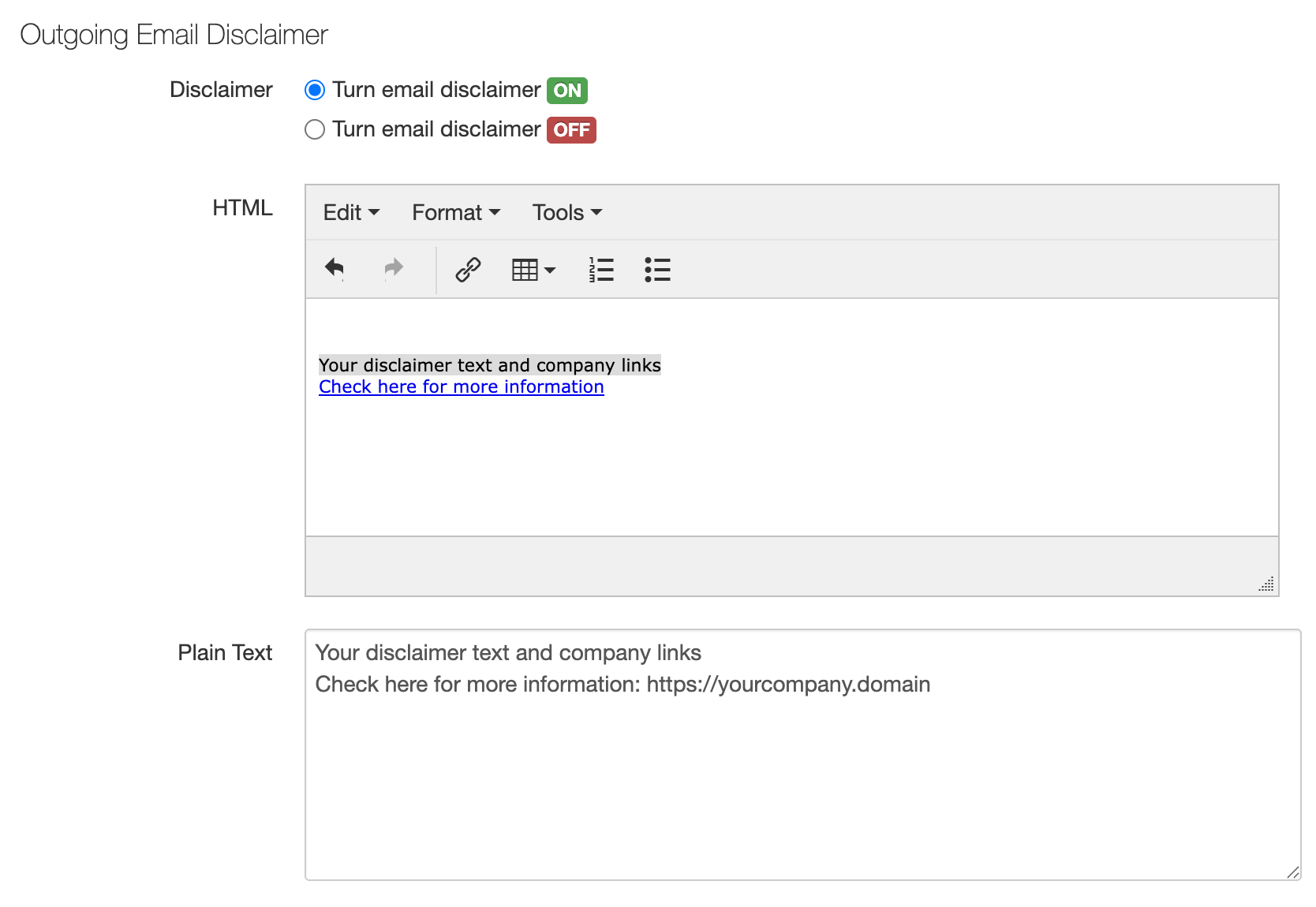
- Turn the disclaimer on.
- Write the wording in the HTML box. The editor there handles formatting, links, lists and tables.
- Write a plain text version in the box below it.
Why both versions matter
Mail programs that show plain text use the second box, so a disclaimer written only in HTML will be missing for some of the people who receive it.
Plain text cannot carry a link behind wording, so write any web address out in full there. The example in the Control Panel shows this: the HTML version links the words, and the plain text version prints the address.