Archiving your mail
The two meanings of archiving: freeing space in your mailbox, and keeping a permanent record of everything.
People ask for archiving to solve one of two different problems. One is a mailbox that is running out of space. The other is a need to keep a copy of every message for good, whatever anyone later deletes. They are handled differently, so start by deciding which you want.
Freeing space in your mailbox
Your mailbox has a size limit, and everything you keep counts towards it. You can move older messages off the server and onto your own computer, so you still have them without using your allowance.
Before you do, check what is actually using the space. A few large attachments usually account for more than the message count suggests, so sort a folder by size. You may free enough from a handful of messages to avoid archiving at all.
What you give up
Archived mail lives on one computer. It stops appearing in webmail, on your phone, and on any other machine you sign in from. That is the trade for the space.
It also leaves the backups that protect the server. Once a message is on your own disk, backing it up is yours to arrange, so keep the archive somewhere that is itself backed up.
How to do it
Any mail program that connects over IMAP can archive, because it keeps a local store alongside your server folders.
- Create a local folder. Programs describe these differently, usually as being on this computer or under local folders, as distinct from the folders on the server.
- Select the messages you want to archive and drag them into it.
- Wait for the transfer to finish before closing the program. A large batch takes a while, and stopping midway can leave messages in neither place.
Moving messages rather than copying them is what frees the space, so check afterwards that they have gone from the server folder.
A permanent archive of everything
A managed archive is a separate, permanent record. It is not a backup, and it is not the same as moving old mail to your computer. Neither of those survives someone deleting a message deliberately.
Zimbra Archiving
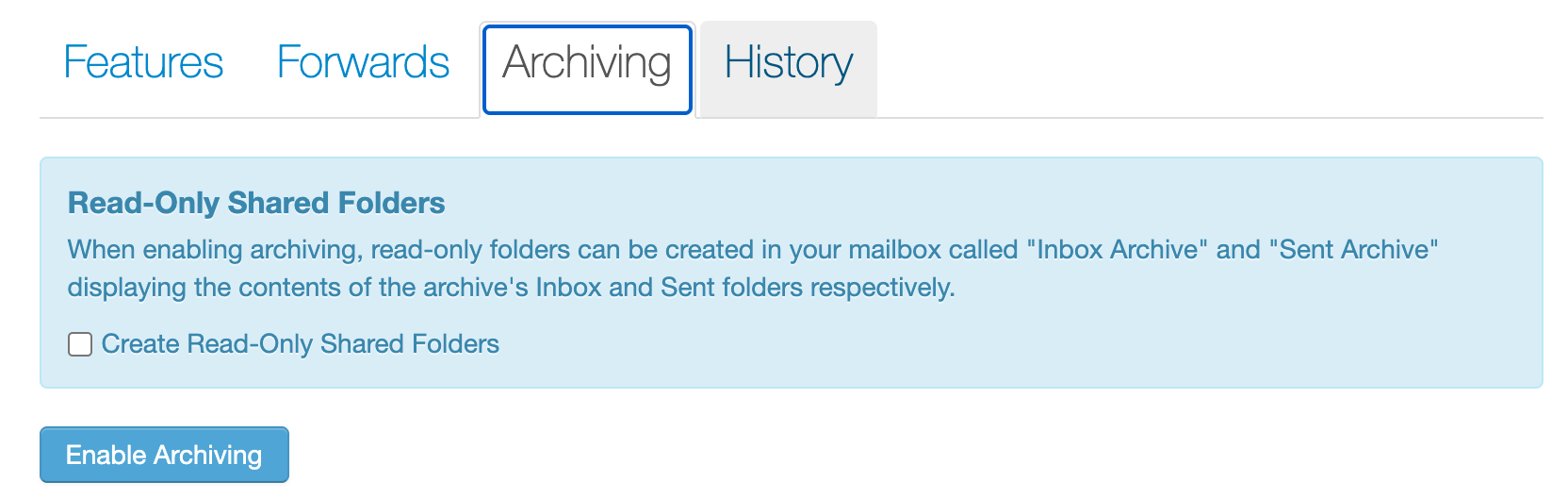
Zimbra Archiving keeps a copy of mail as it passes through, held separately from your own mailbox. You turn it on yourself in the control panel: open your Zimbra product, go to the Archiving tab, and choose Enable Archiving.
There is an option to Create Read-Only Shared Folders while you are there. It adds two folders to your mailbox, Inbox Archive and Sent Archive, showing the archive contents so you can read them without leaving webmail. The folders are read only, so nothing you do in them changes the archive.
Copying to another mailbox
Where full archiving is more than you need, we can copy every message sent or received through our systems to another mailbox. That mailbox can be on Zimbra, or somewhere else entirely such as a Gmail account.
It is a simpler arrangement with fewer features. It suits a small domain that needs a record rather than a searchable archive with retention rules. Contact support to set this one up, naming the addresses it should cover.