How to blacklist a sender's email address
This article shows you how to blacklist individual emails using the sender's email address - and also how to blacklist all emails from a particular sending domain.
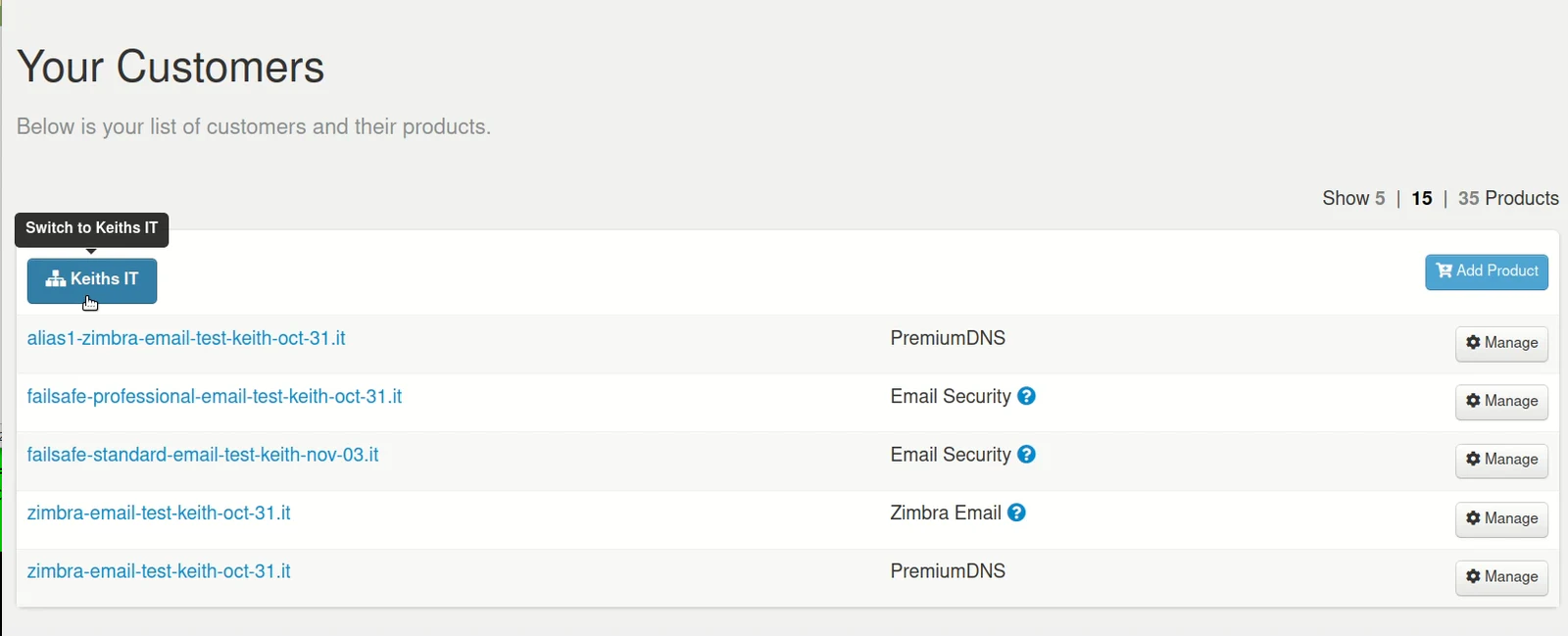
Step 1. Login to the Control Panel and under 'Your Customers' click on the customer's account you wish to manage.
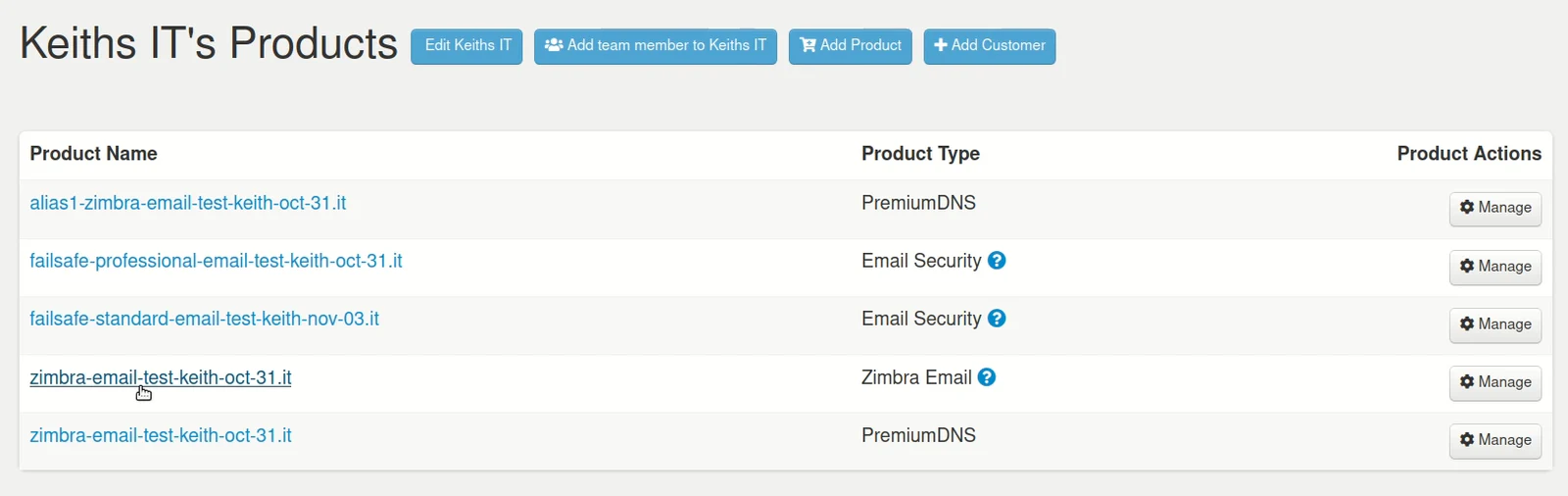
Step 2. From the customer's account page, click on the Product Name you wish to manage - in this example it's Zimbra Email.
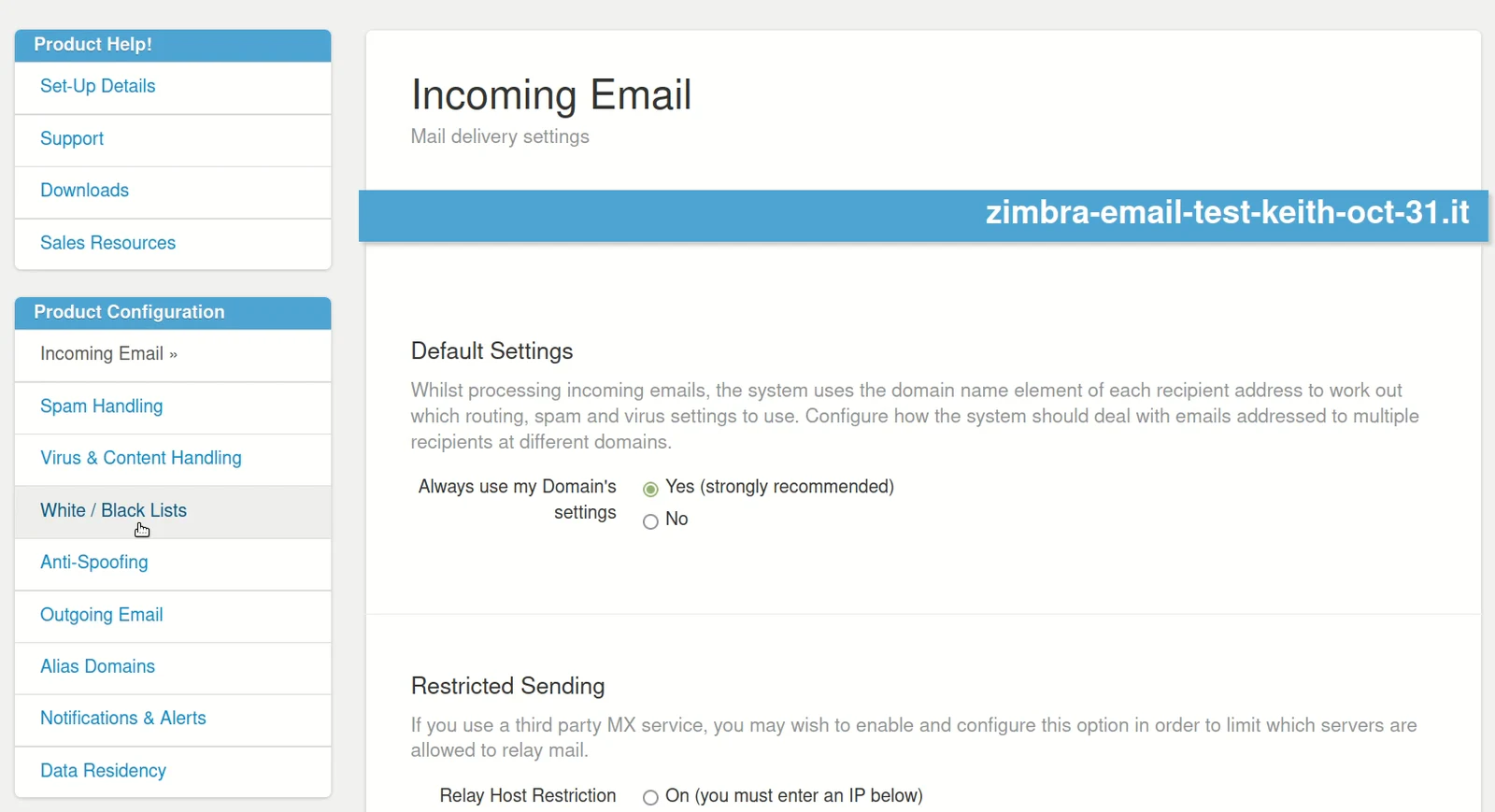
Step 3. Under 'Product Configuration' click on White / Black Lists
Step 4. In the White / Black Lists window - scroll down to the 'Blacklist' section.
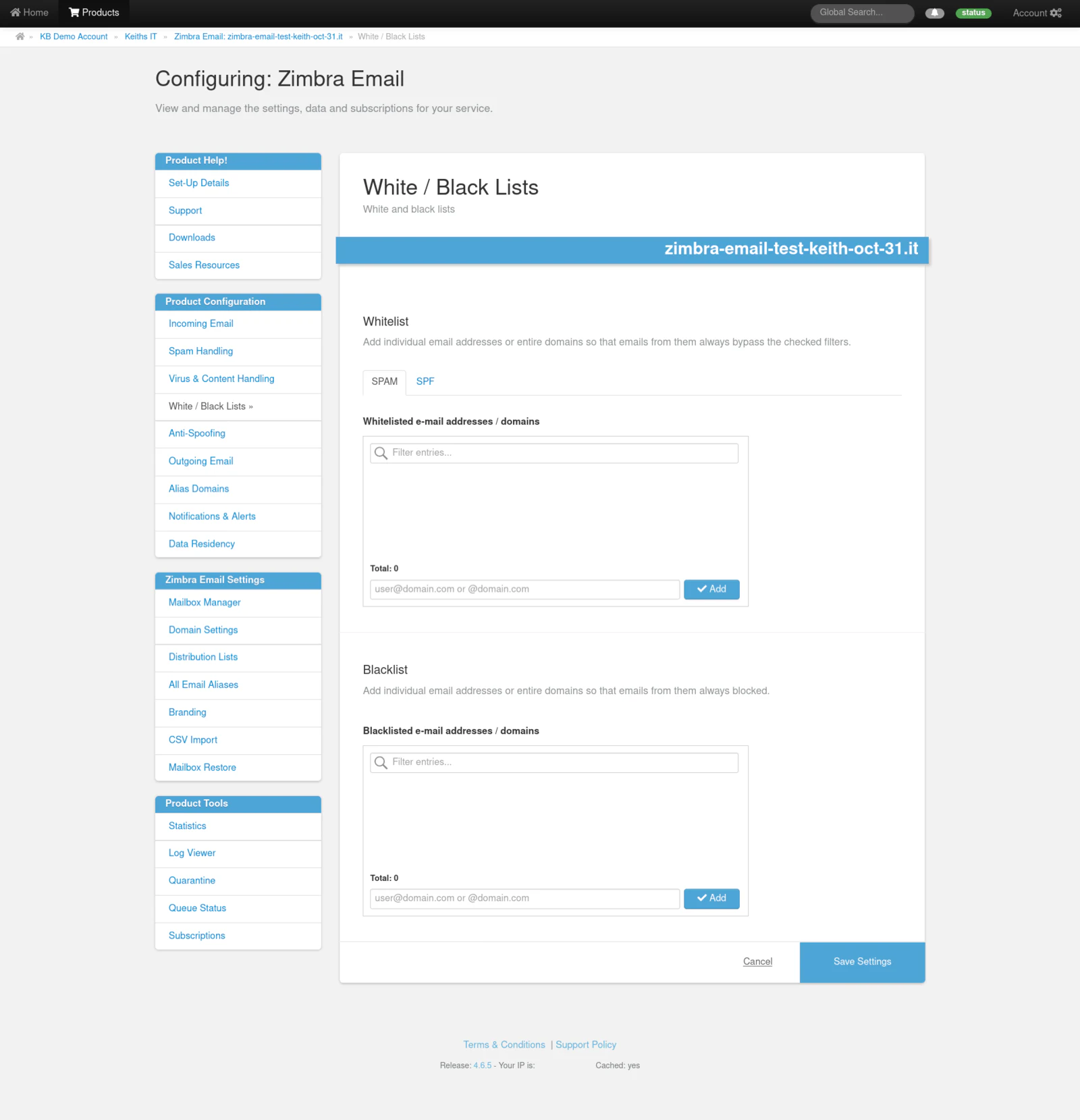
Step 5. Here you can block SPAM by individual sender's email addresses, or by adding a sender domain you know is untrusted and used to send out SPAM.
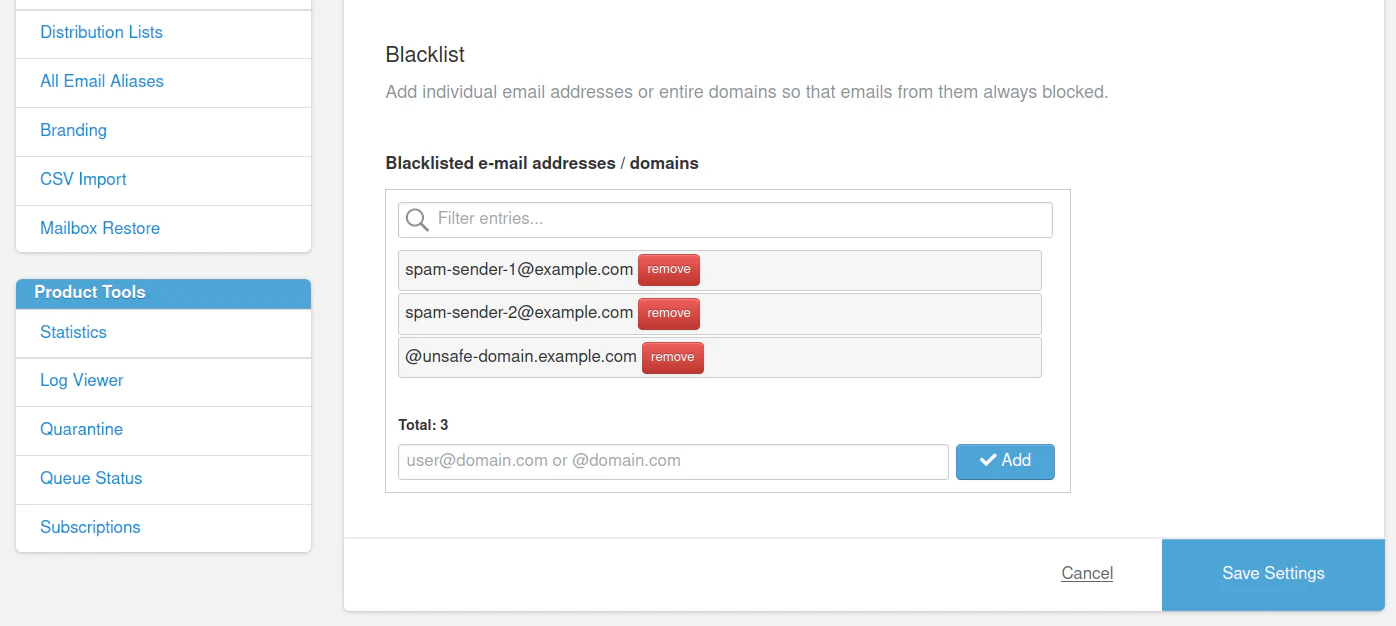
NB: If you block SPAM using a domain name - that will block ALL emails sent from that domain - good or bad.
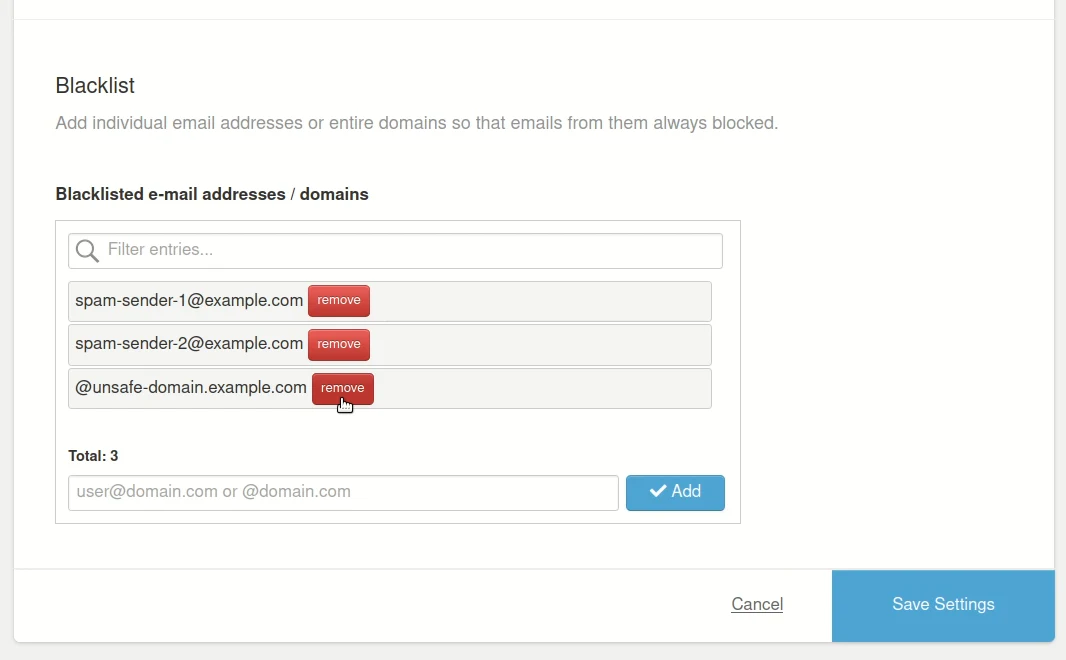
Step 6. To remove an existing email address or domain from the Blacklist - simply click on the Red 'remove' button.
.