Create application specific passwords
How to let a device sign in when it cannot prompt you for a two-step code.
An application passcode is a separate password for one device or program. It exists because some mail programs cannot ask you for a two-step code, so they cannot sign in once two-step authentication is switched on. Set up two-step authentication first: see setting up two-step authentication.
Each passcode covers one device, so revoking one leaves the rest working. That is the point of issuing them per device rather than sharing one.
Step 1
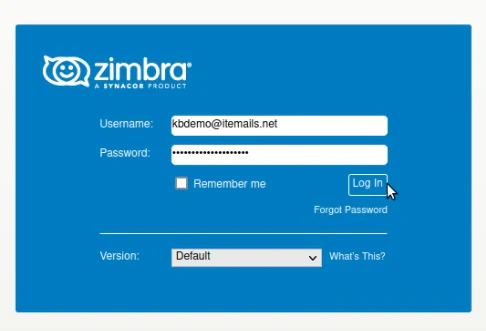
Login to Webmail with your current password
Step 2
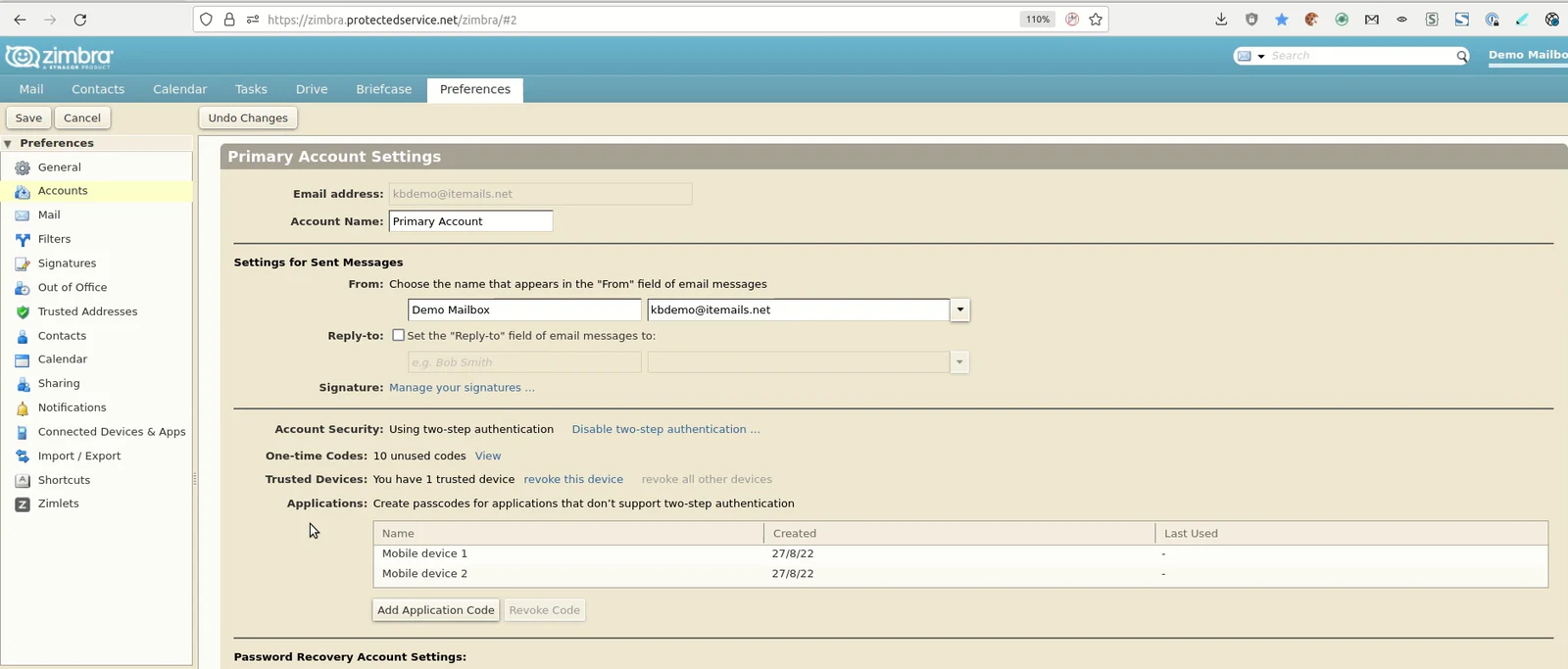
Go to Preferences -> Accounts -> Primary Account Settings and
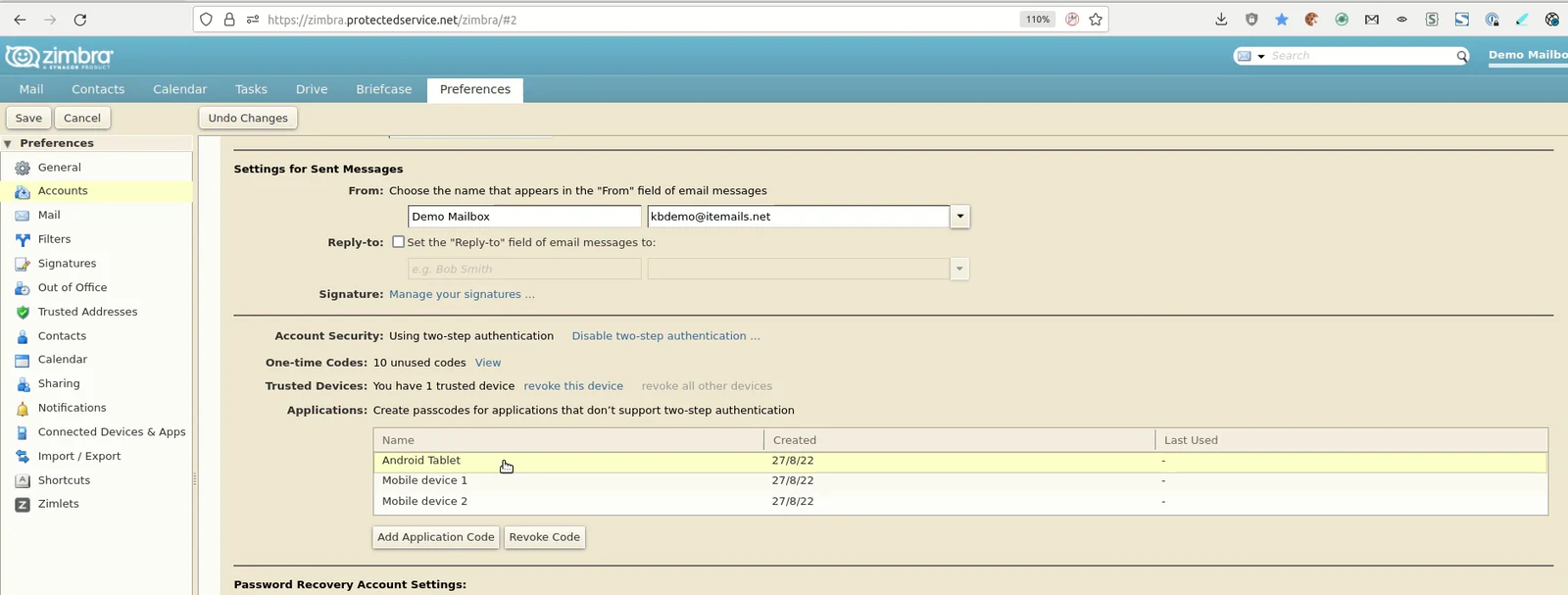
Go to 'Applications' above Password Recovery Account Settings:
Step 3
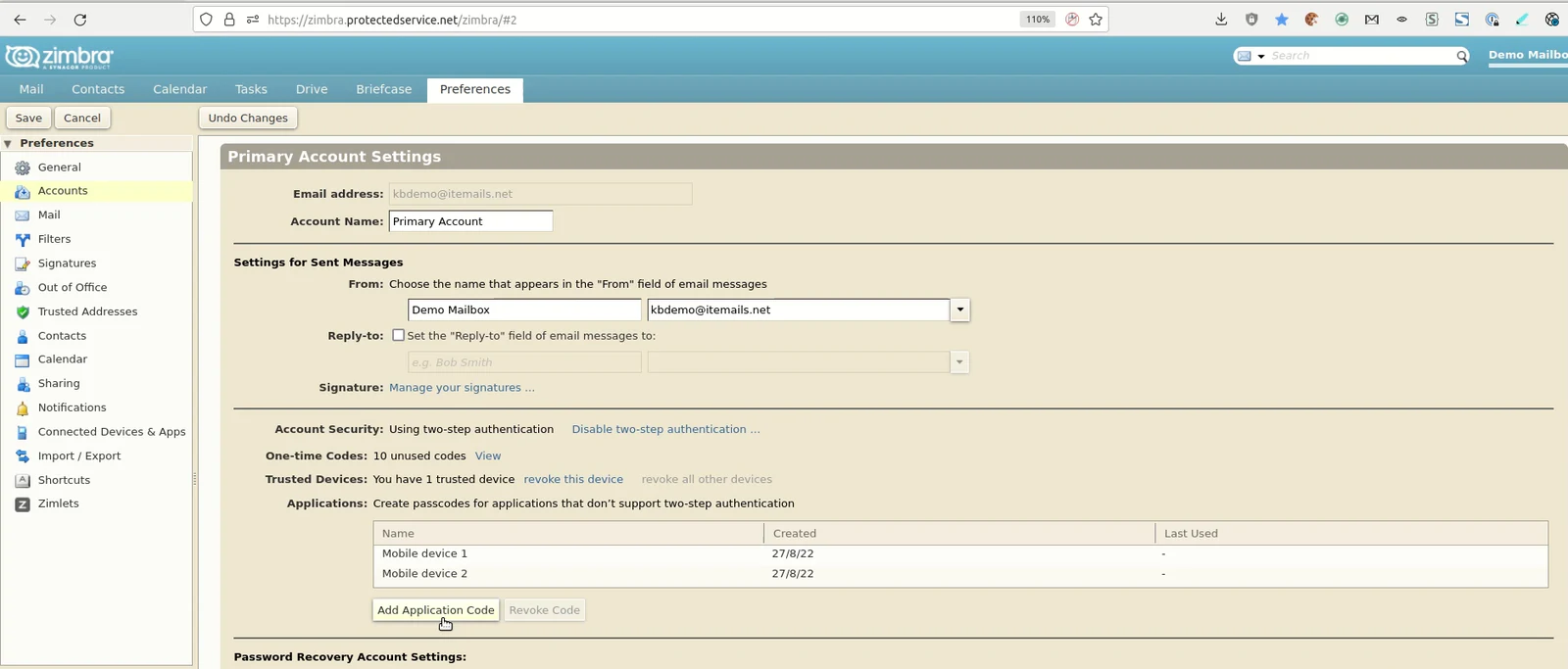
Click the 'Add Application Code' button
Step 4
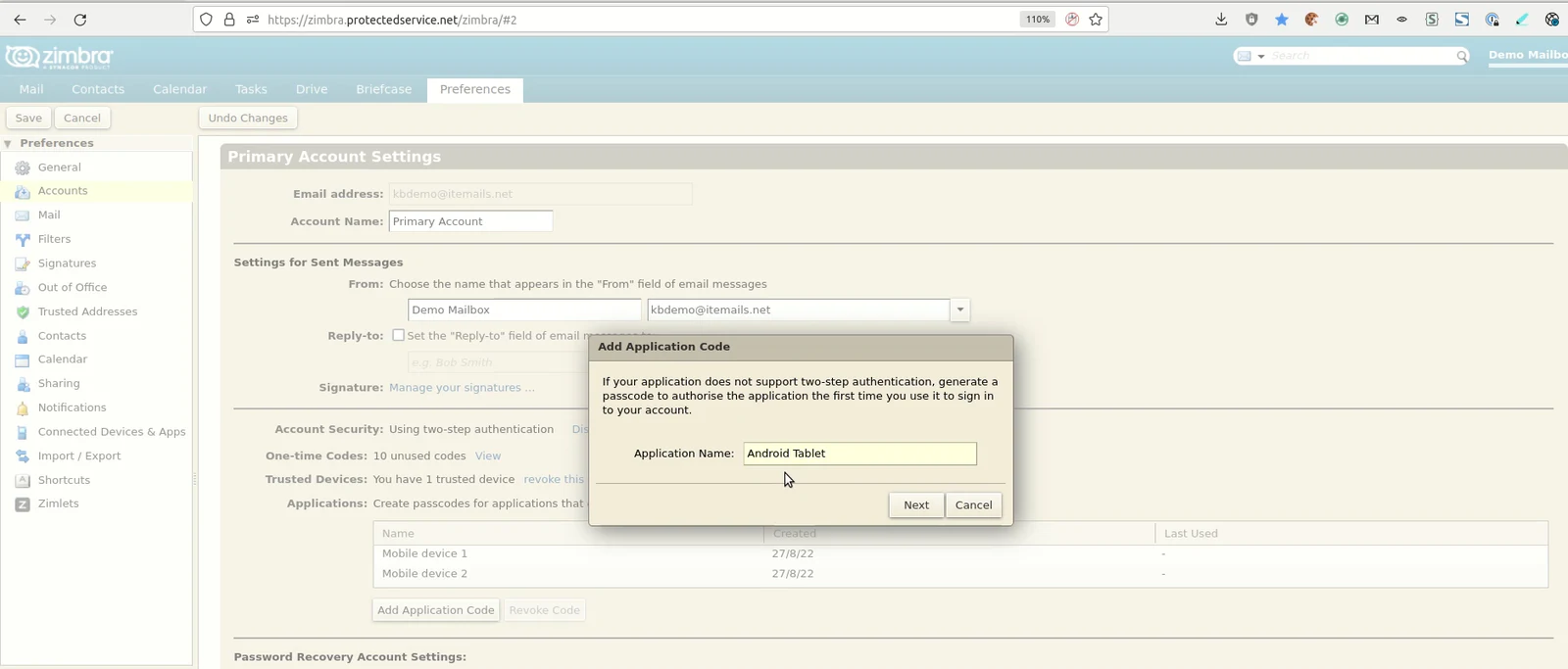
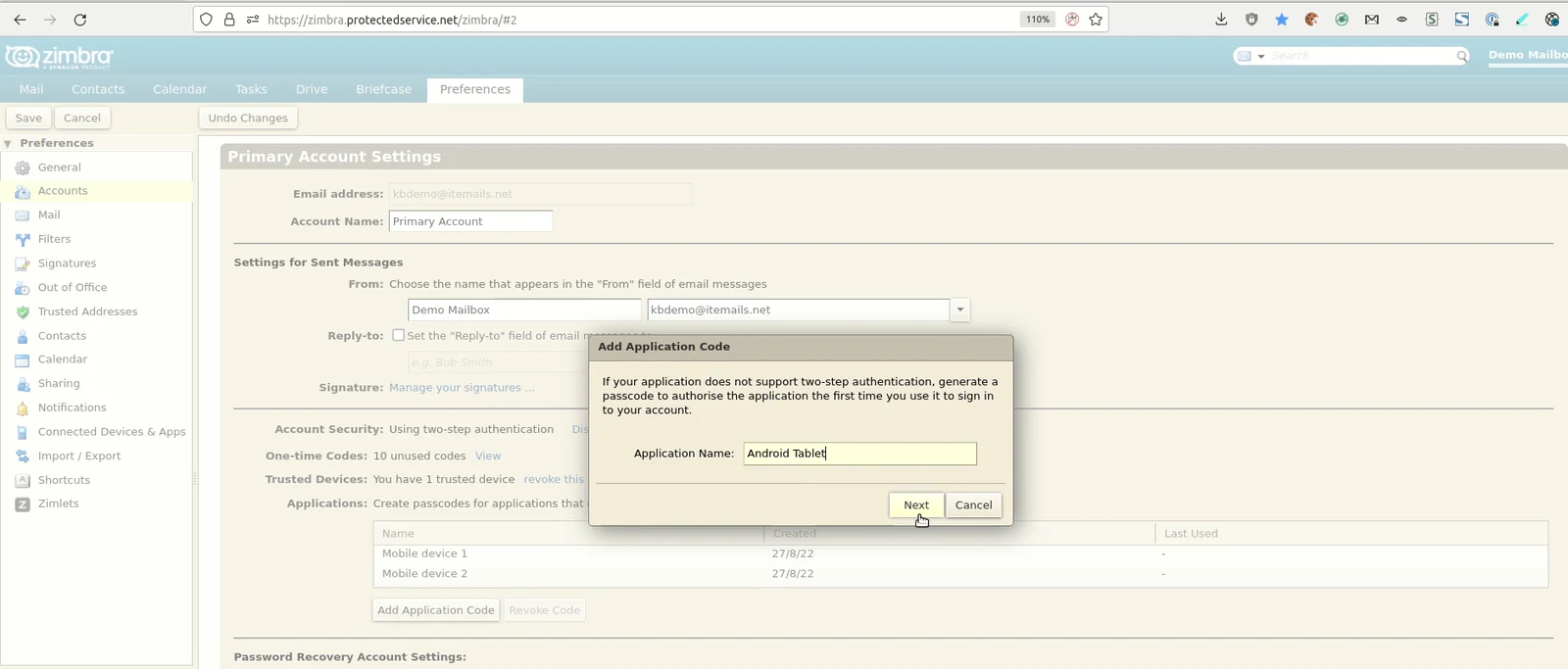
Enter a name for your device in the 'Application Name:' field
Step 5
Click on the 'Next' button
Step 6
Make a note of the Application Passcode
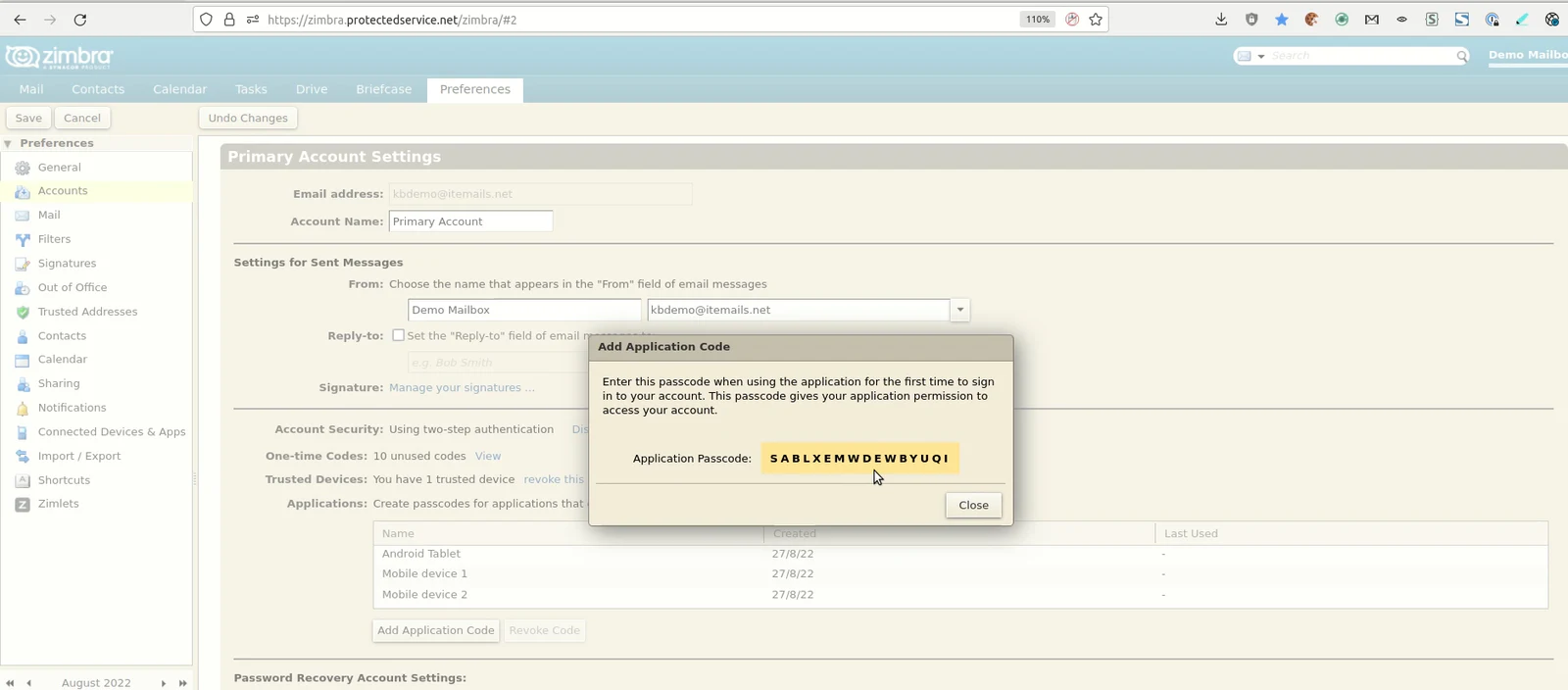
When using your device for the first time, you will need to enter this passcode to sign in to Webmail, without needing to use two-step authentication.
Step 7
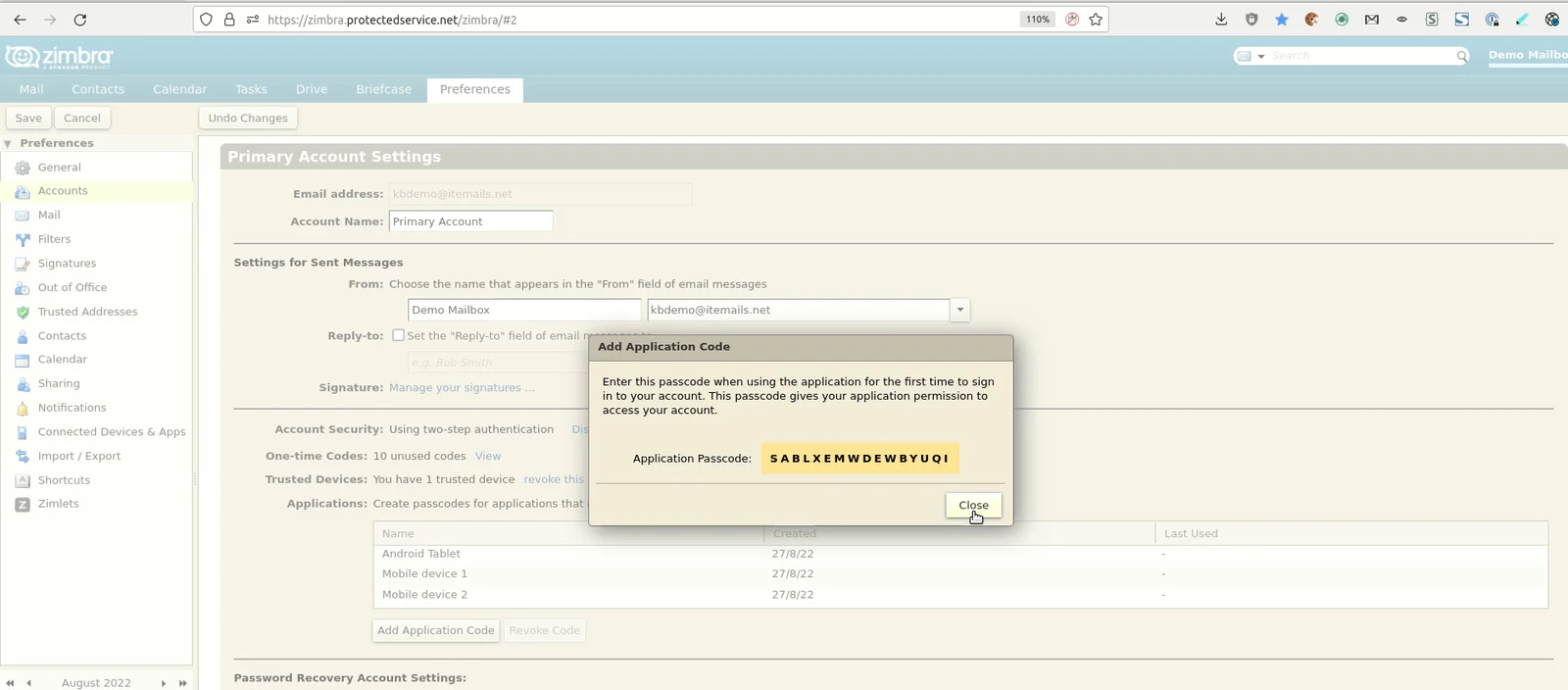
Click on the 'Close' button
The device has now been added
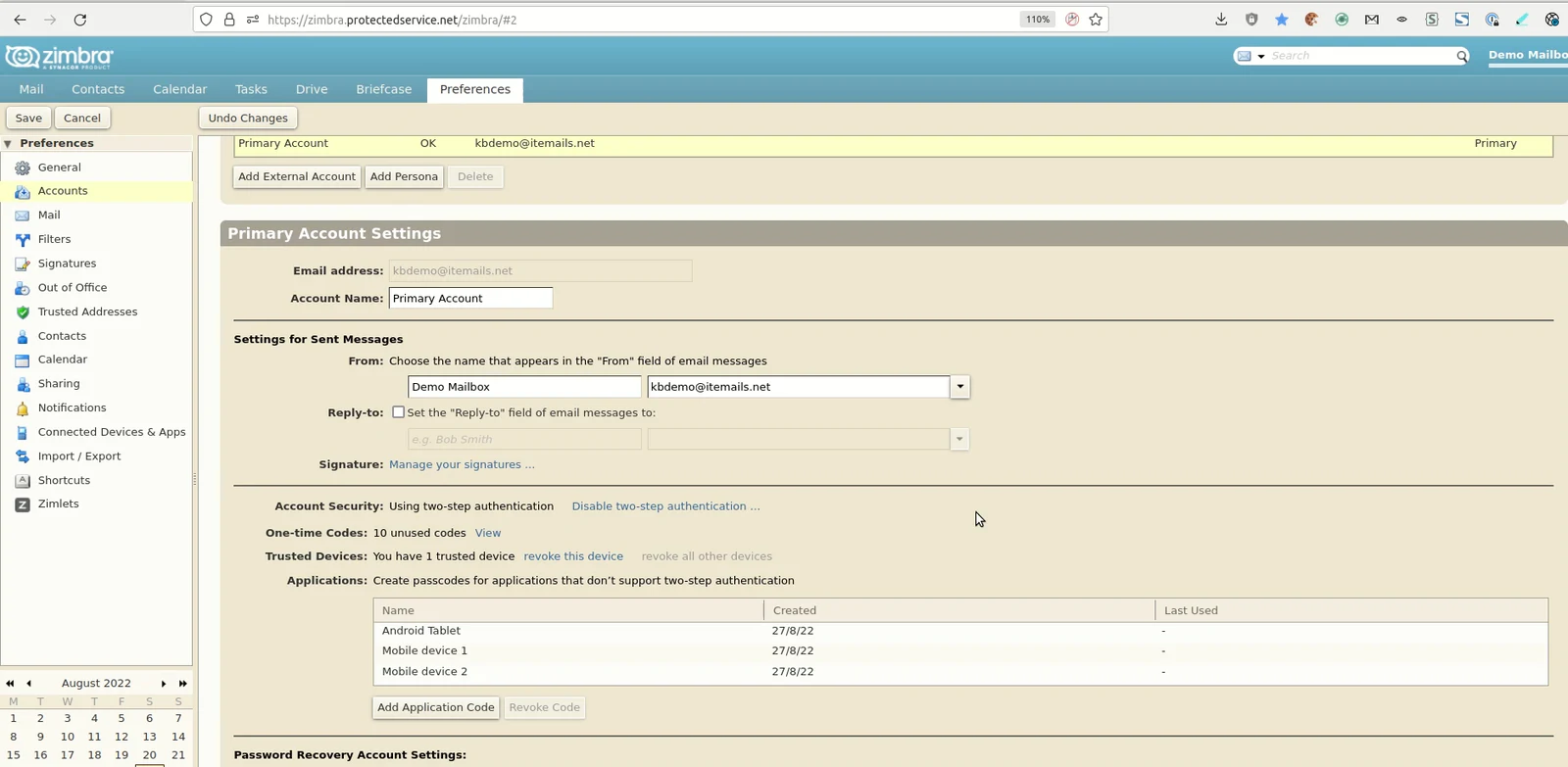
If you loose your device and want to remove the device passcode
Step 1
Click on the device name
Step 2
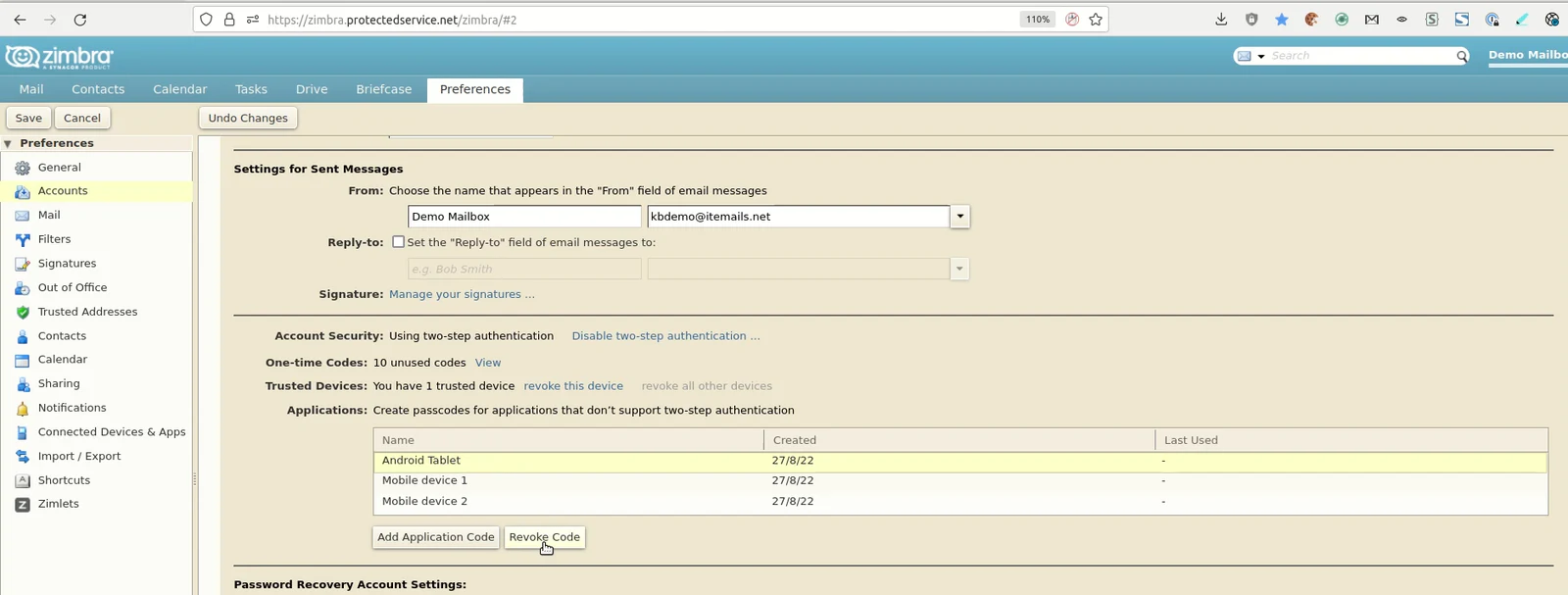
Click the 'Revoke Code' button to remove your device's passcode.
.